


Substage hits 1.0 with a massive update
Complete redesign, a new Rules feature, and much more
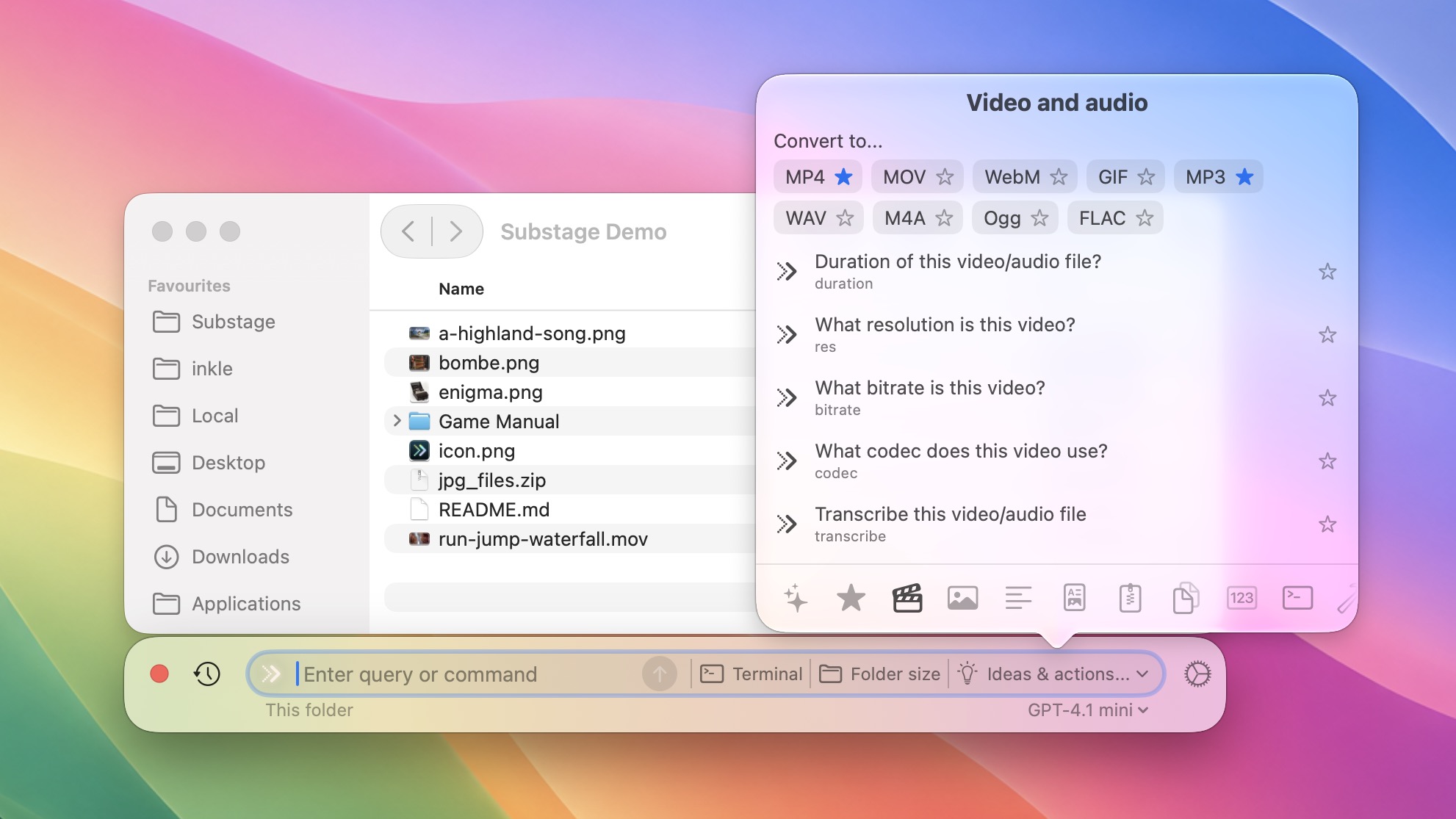
Since I first released Substage just over a year ago, agents have taken the world by storm, and at WWDC this year, Apple finally showed their hand with the new agentic Siri coming in macOS 27.
In parallel, I've actually been pushing Substage in the opposite direction: towards being a fast, focused tool. If agents are chainsaws, Substage is a craft knife - precise, instant, and always to hand. And I’m really happy with the specific niche I’ve carved out for it.
Over the past year I added features like Quick Actions, which speed up the most common prompts - file conversions, say - so they skip the AI models entirely.
Now I'm releasing Substage 1.0, which sharpens it even further: an entirely redesigned UI flow, support for multiple parallel long-running tasks (great for video conversion), Rules (for powerful customisation), a new palette of ideas and suggestions and much more.
UI Design Overhaul
The overall design has been completely rethought to make everything more intuitive, with a new layout that’s simple yet elegant.
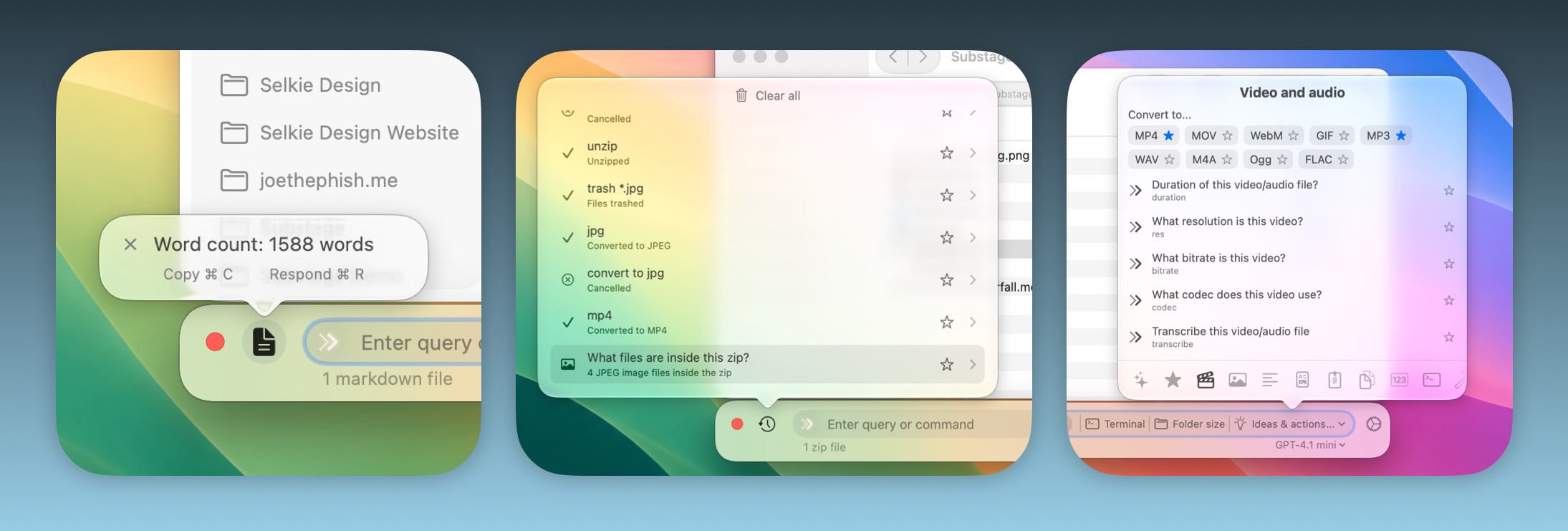
At the heart of this redesign is the new task list, which lets you easily dig into the details of everything you’ve asked Substage to do, and even run multiple commands simultaneously.
Pro tip: Hold Command while pressing Enter to keep the task view open and stream results in real time - useful for keeping an eye on exactly what Substage is doing as it runs.
Rules
Rules are a bit like custom instructions when personalising a chatbot, but more focused. They teach Substage your preferences, conventions, and context so you don’t have to spell everything out every time.
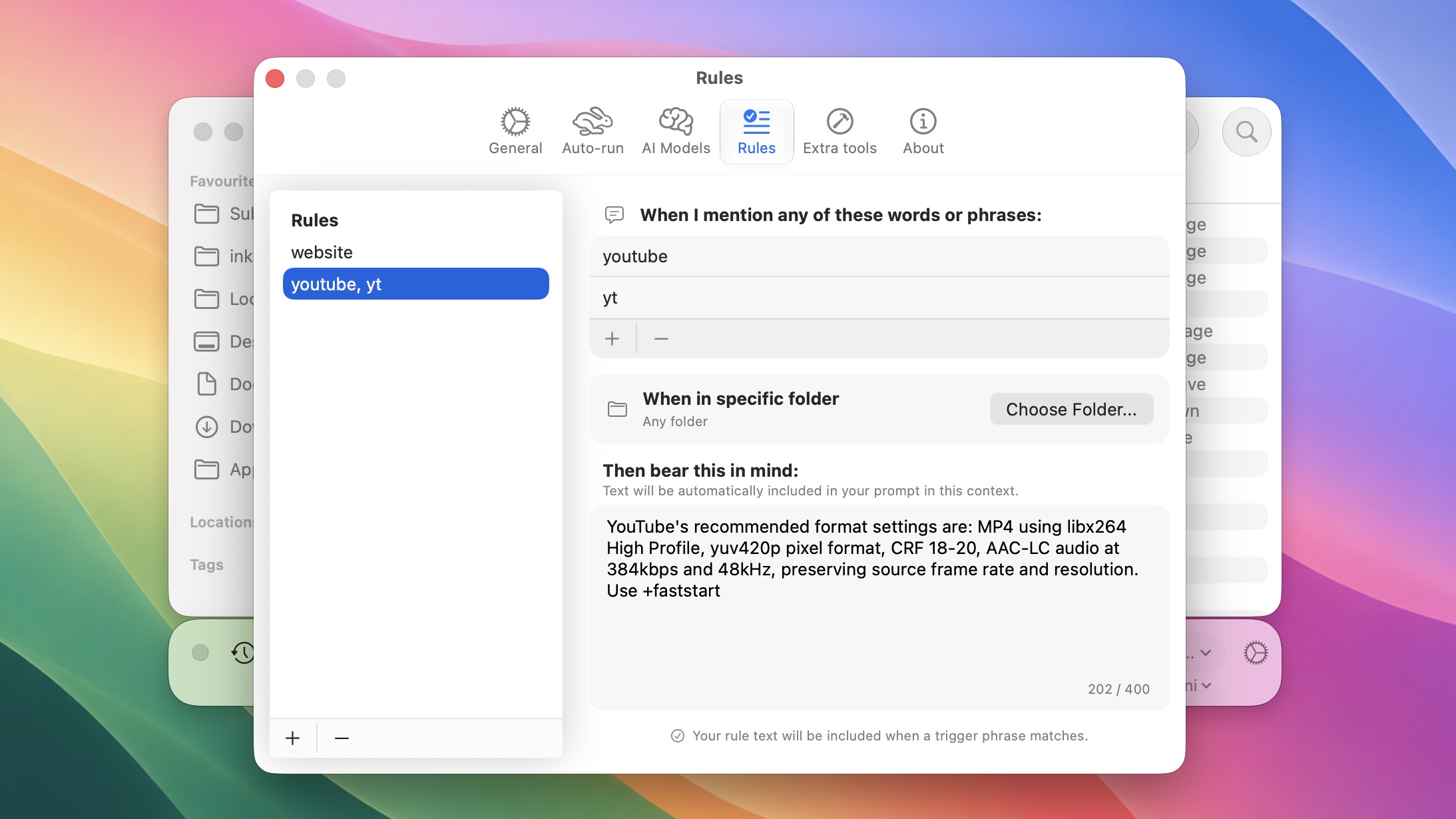
With the above rule, just say "export for youtube", and Substage will match the params that YouTube recommends.
For example, when working in your website folder, you may want to say that images should always be 1600 pixels wide. Then, just tell Substage “resize” with images selected, and it’ll do the right thing.
Rules work by adding little extra piece of written context when you use a specific word or phrase, or when you’re working in a specific folder, though you can also choose to make them global.
More examples:
Trigger: projects
Text: My projects folder is in ~/Work/Projects
Example of usage: Go to projects / Move this to projects
Trigger: youtube
Text: Youtube recommends H.264, High Profile, progressive scan, 4:2:0, variable bitrate, same frame rate as source, BT.709 for SDR, and AAC audio.
Example of usage: mp4 for youtube
Trigger: edit
Text: my preferred text editor is /Applications/Zed.app
Example of usage: edit this (say, with a markdown file selected)
Trigger: (your personal website folder)
Text: If I ask to upload the website, run the script in this folder: scripts/go_live.sh
Example of usage: upload
So, to set them up, you start by defining a trigger: a word or phrase like “projects folder,” “high quality,” or “upload” - or a specific folder on your computer. Then attach freeform instructions that give it meaning: where your projects folder actually is, what you consider high quality, or exactly how Substage should handle “upload.”
By tying instructions to specific triggers, prompts stay lean and focused - smaller and local models in particular won’t get bogged down with irrelevant context. That said, you can always make a trigger global if you want its instructions included in every prompt.
Ideas & Actions
The most requested feature was a way to explore everything Substage can do - use cases, ideas, suggestions. I realised there was also an opportunity to combine this with a smart list of actions relevant to whatever you’re looking at and have selected in Finder.
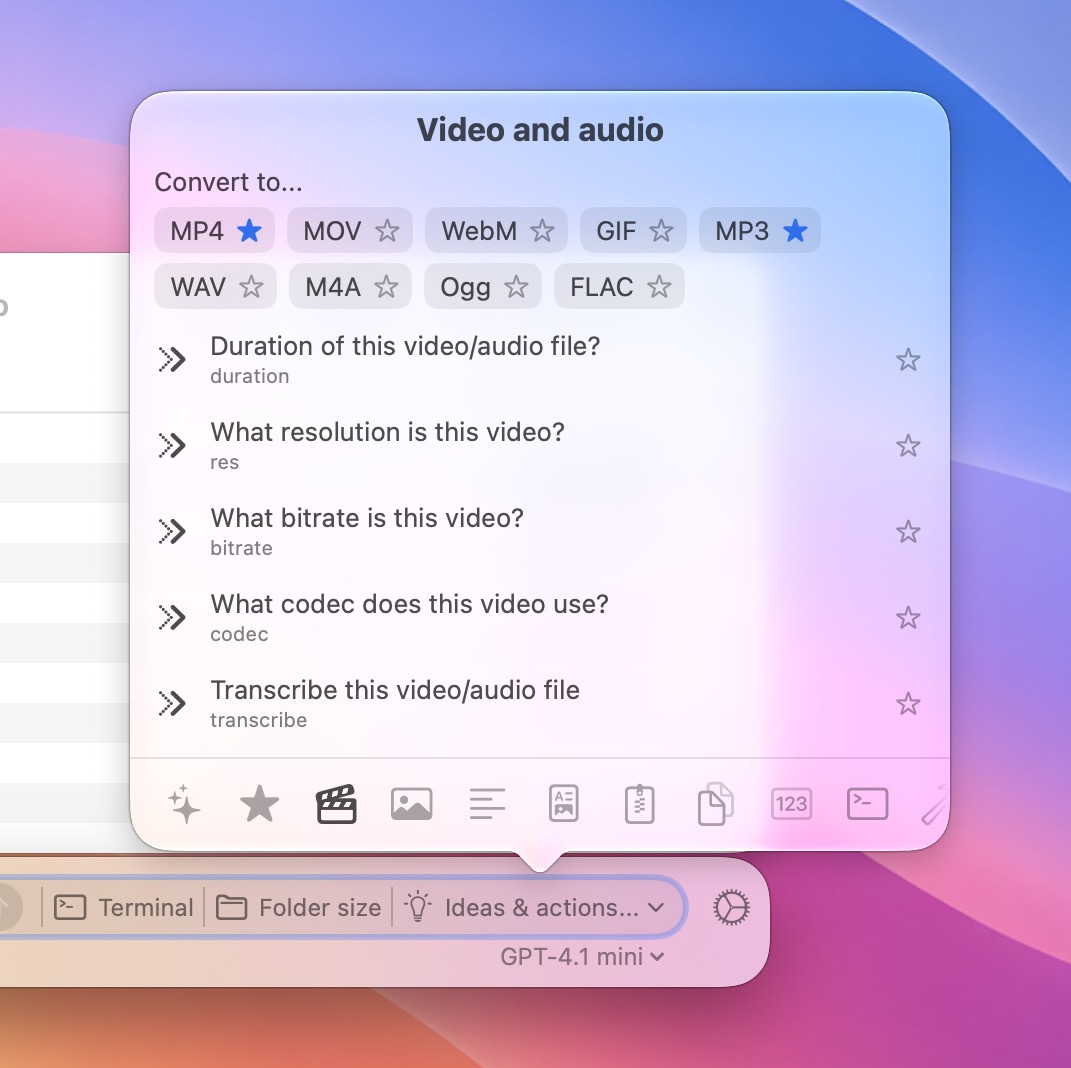
Substage even surfaces the most relevant commands as buttons directly in the prompt bar, putting common actions like zipping files or converting image formats just one click away.
Pro tip: Many suggestions show a short abbreviation beneath them - this is the command’s Quick Action name. Type it directly and Substage can act immediately, no AI interpretation needed.
Favorites
Save your most-used commands for quick reuse. Wherever you see a star, whether in the task list or the Ideas & Actions palette, click it to add that command to your Favorites. From there, your saved commands will also surface in the Substage bar whenever you select relevant files.
Smart Folder compatibility
Search views and smart folders like Recents don’t represent real folders - they’re dynamic collections of files drawn from across your entire computer. This posed a problem for Substage, which takes a Terminal-centric approach and expects to work within a single folder.
The solution is an elegant workaround that finds a common parent folder for the selected files and works with their full paths - letting Substage treat any Finder view as if it were a normal folder. Of course there are still some limitations because they’re still not real folders, but the majority of what you would expect to work now just works.
Desktop compatibility
Substage is no longer limited to Finder windows. If you’re working on the desktop, a floating Substage bar appears at the bottom of your screen — another commonly requested feature.
Improved integrations
- Transcription: making use of Finn Voorhees excellent yap package that’s on Homebrew, Substage can now transcribe speech from audio to text using the on-device model available in macOS Tahoe and later. Just ask Substage to transcribe and it will do the rest!
- WebP support improved
- Support for more commands in Substage Predicts, including basic git understanding, shasum, hdutil, diskutil and more
- FFmpeg package updated to 8.1.1, and now has an Apple Silicon version so that Rosetta isn’t required
AI Model support updates
It can be difficult to keep up with the pace of new AI models! This release includes support for GPT 5.5, Gemini Flash 3.5, Claude Opus 4.7 and the latest Mistral models.
Accessibility
Special attention has been given to VoiceOver support in this release. Allowing the use of plain English to manipulate files makes Substage a genuinely powerful tool for blind users, and this update makes sure it’s living up to that potential.
Smoother Finder integration
Substage windows now follow their Finder windows more smoothly, in many cases well enough that they look perfectly attached. Also, updating the context of what you have selected is now much faster and more efficient, since I stopped using AppleScript and started using AppleEvents instead under the hood.